How to Fix the "Connected, No Internet" Error
Your device says it's connected to Wi-Fi, but nothing loads. That error means exactly one thing — and here's how to fix it at whichever link in the chain broke.
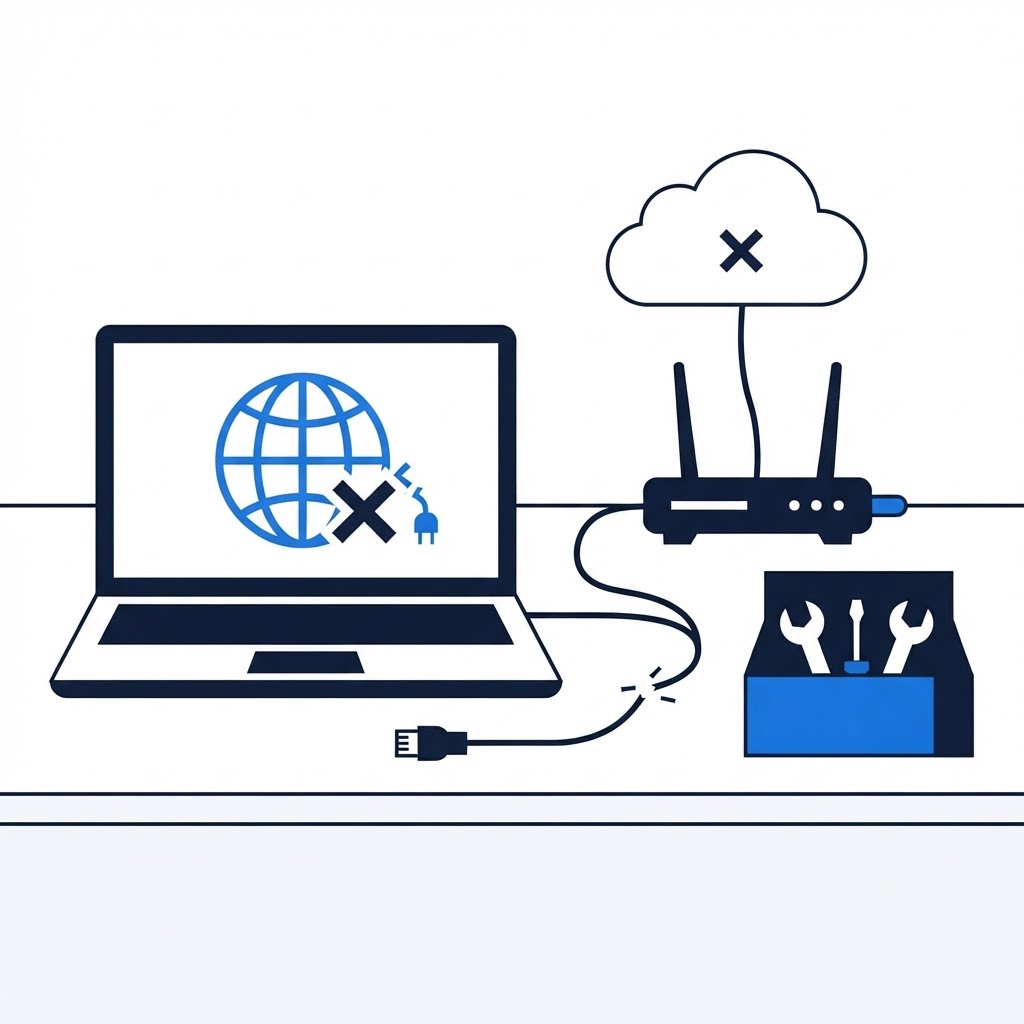
"Connected, no internet" is a precise message, not a vague one: your device reached the Wi-Fi router, but the router isn't delivering data to the wider internet. That narrows the problem to three places — your device's settings, the router, or your internet provider. Test in that order.
Step 1: Is It Every Device, or One?
Check a phone and a computer (and a wired device if you have one).
Only one device fails → the problem is on that device. Continue to Step 2.
Everything fails → skip to Step 3.
Step 2: Fix the Single Device
-
Toggle Wi-Fi off and on, then reconnect. Simple, effective, and underrated.
-
Forget the network and rejoin. A saved network with stale credentials (common after a router or password change) produces exactly this error.
-
Check for a fixed IP conflict. If the device was manually assigned an IP address, switch it back to automatic (DHCP) in the Wi-Fi network's advanced settings.
-
Flush the DNS cache (Windows). Open Command Prompt and run
ipconfig /flushdns. If a specific DNS server is failing, set the device's DNS to 1.1.1.1 or 8.8.8.8 in network settings. -
Disable the VPN. A stuck VPN connection silently blocks all traffic while claiming to be "on." Disconnect it fully, including its virtual adapter, and retest.
Step 3: Fix the Router Chain
-
Look at the router's lights. The internet/WAN light should be solid (often green or white). A red or blinking internet light means the router isn't talking to your provider — note that before you reboot.
-
Power-cycle in the right order. Unplug the modem and router. Plug in the modem alone, wait until its lights settle (1–2 minutes), then plug in the router, then reconnect your devices. Half of all "no internet" errors die here.
-
Check the physical cable. The cable from the wall (or from the modem) into the router's WAN port should click in firmly. A partially seated coax or Ethernet cable causes intermittent total outages.
-
Call your provider if the modem's internet light stays red after a full power cycle. A line fault or an outage in your area isn't fixable from home — and the provider can confirm in one call.
One Sneaky Cause
Captive networks — hotel, airport, and some apartment Wi-Fi — show "connected" until you accept their sign-in page. If you're away from home, open a browser and look for a login page that hasn't popped up; loading any plain http:// site will force it to appear.
If the cycle keeps repeating — fine for a day, then dead again — that's a provider-side line quality issue or a failing modem. A remote technician can interpret your router's logs and status lights with you and pinpoint which side needs attention before you spend an hour on hold with your ISP.
Wi-Fi Still Acting Up?
Our technicians fix computers, Wi-Fi, printers and smart home devices remotely — anywhere in the US, same-day sessions available.