How to Restart Your Router the Right Way (and Fix Most Wi-Fi Problems)
Before you blame your internet provider, try this. A proper router restart clears memory glitches and re-establishes your connection — here's the right way to do it.
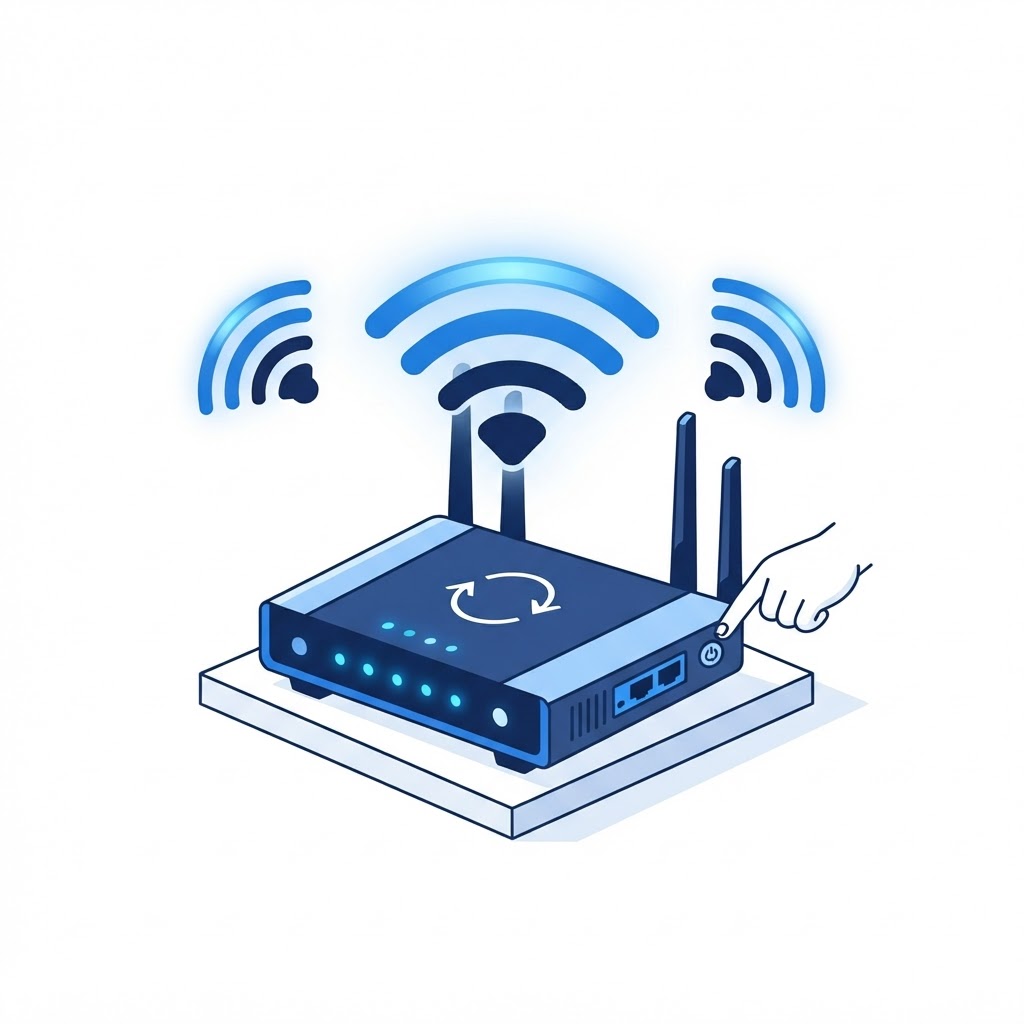
Slow Wi-Fi, dropped video calls, and devices that "can't connect" often trace back to one simple fix: a full router restart. Not a five-second reboot — a proper one that clears the router's memory and lets it rebuild every connection from scratch.
Why restarting works
Your router is a small computer. It caches connections, assigns addresses to every device, and juggles dozens of simultaneous sessions. Over days or weeks, that memory gets cluttered and things start to misbehave. A restart wipes the slate clean.
Step 1: Unplug the router (and the modem)
Pull the power cable from the back of your router. If you have a separate modem, unplug that too. Don't use a power strip switch — unplug at the wall or at the device so you know power is truly off.
Step 2: Wait 60 seconds
This is the step most people skip. Waiting a full minute lets the internal capacitors discharge completely, which is what clears the memory. A quick flick of the plug doesn't achieve the same result.
Step 3: Plug the modem in first
If you have a separate modem, plug it back in and give it two to three minutes to fully connect. You'll usually see its online light go solid before the others settle down.
Step 4: Plug the router in and wait for it to boot
Give the router another two or three minutes. Watch the lights: you want a steady power light and a solid internet or online light. A blinking internet light usually means it's still negotiating with your provider.
Step 5: Reconnect a device and test
On your phone or laptop, toggle Wi-Fi off and back on, then reconnect. Load a couple of websites or run a speed test. If speeds are still far below what you pay for, move to the troubleshooting section below.
If a restart doesn't fix it
- Still slow? Test speed with a laptop wired by Ethernet to the router. If wired speed is fine, the problem is Wi-Fi signal, not your internet service.
- One device only? The problem is that device — forget the Wi-Fi network on it and reconnect from scratch.
- Drops at the same time every day? That points to your provider, not your router. Note the times before you call them.
If you've tried all of this and your Wi-Fi still isn't cooperating, a TECHNICO technician can connect remotely and sort out your network settings, channel congestion, and dead spots with you. Support is available 24/7 at (516) 939-8357 or at technicoss.com.
Wi-Fi Still Acting Up?
Our technicians fix computers, Wi-Fi, printers and smart home devices remotely — anywhere in the US, same-day sessions available.