How to Remove Malware From Your PC: A Step-by-Step Guide
Pop-ups you didn't ask for, a browser that redirects, or a PC that suddenly crawls? Here's a safe, step-by-step process to clean malware off a Windows PC.
Malware doesn't always announce itself. Sometimes it's obvious — pop-ups, a hijacked homepage, fake "virus detected" warnings. Sometimes it just quietly makes your PC slow. Either way, the cleanup process below works for the most common infections.
Step 1: Disconnect from the internet
Unplug your Ethernet cable or turn Wi-Fi off. This stops the malware from "phoning home," downloading more malicious files, or sending off your data while you work.
Step 2: Boot into Safe Mode
On Windows 10 or 11: hold Shift while you click Restart from the power menu. Then choose Troubleshoot > Advanced options > Startup Settings > Restart, and press 4 for Safe Mode. Safe Mode loads only the essentials, which keeps most malware from activating.
Step 3: Delete temp files
Open the Start menu, type Disk Cleanup, select your C: drive, and check Temporary files before running it. This clears out files malware often hides in and can speed up the scan in the next step.
Step 4: Run a full scan with Windows Security
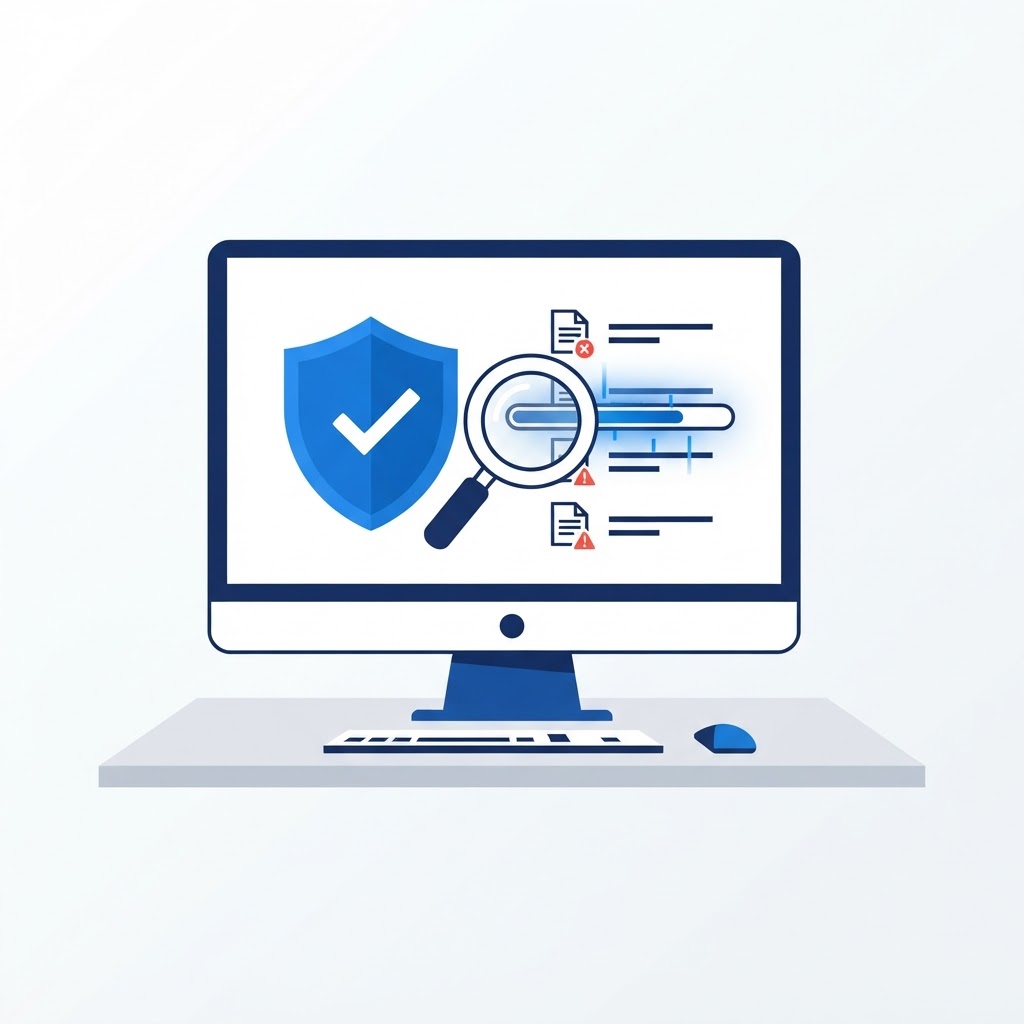
Open Windows Security (search for it in the Start menu), go to Virus & threat protection, click Scan options, choose Full scan, and run it. A full scan can take an hour or more — that's normal. Quarantine everything it finds.
Step 5: Run a second-opinion scan
No single scanner catches everything. Run a free second-opinion scanner such as Malwarebytes, then remove anything it flags. If both scans come back clean but problems persist, move to the next step.
Step 6: Fix your browser
Malware loves browsers. In Chrome, Edge, or Firefox: reset your homepage and search engine, uninstall unknown extensions, and clear cookies and cache. If redirects persist, do a full browser reset from the browser's settings page.
Step 7: Change your passwords
Once the PC is clean, change the passwords for your email and banking from a different, known-clean device, and turn on two-factor authentication wherever it's offered. Your email is the master key to everything else, so start there.
Step 8: Update everything
Run Windows Update until nothing is pending, then update your browser and other software. Most infections arrive through old, unpatched software, so updates are your best defense against a repeat.
When to call in help
If the scans won't run, Safe Mode is blocked, or the infection keeps coming back, that's a sign of deeper malware. A remote technician can walk through the cleanup with you on a secure screen-share session — often same-day. Reach TECHNICO 24/7 at (516) 939-8357 or at technicoss.com.
Think You Might Have an Infection?
Our technicians fix computers, Wi-Fi, printers and smart home devices remotely — anywhere in the US, same-day sessions available.