How to Get Rid of Pop-Up Ads and Browser Hijackers
Ads on every page, a search engine you never chose, a new toolbar that came back after deletion. Here's how to remove a browser hijacker completely, not just temporarily.
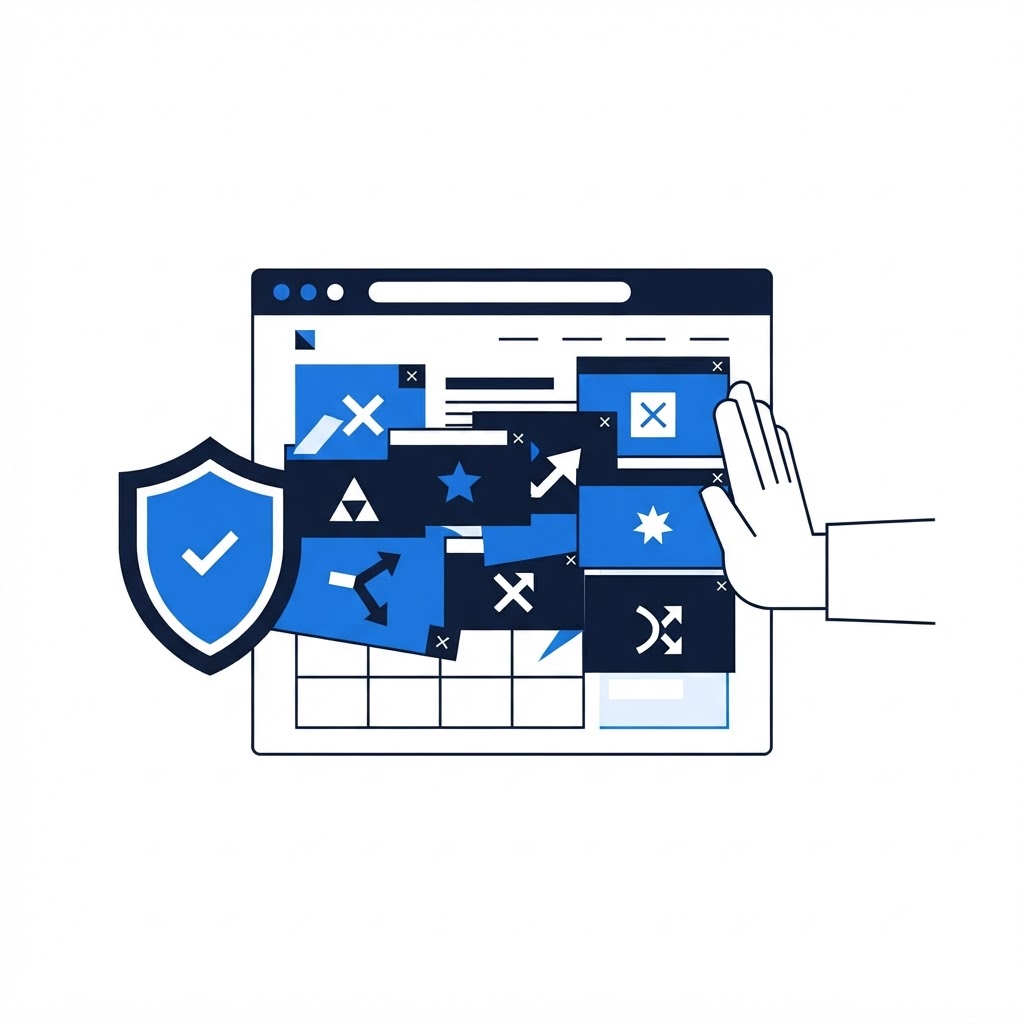
A browser hijacker is the malware that annoys you most and steals the least — which is why people tolerate it for months. But its ads track you, its redirects can lead to genuinely malicious sites, and it rarely leaves on its own. Here's how to remove it fully.
Recognize the Hijacker
Signs: your homepage or default search engine changed and reverts when you fix it, search results route through odd URLs before landing on results, ads appear on sites that normally have none, and new extensions or toolbars you didn't install. If ads only appear on sketchy sites, you may just be seeing those sites' ads — a hijacker follows you everywhere.
The Removal Sequence
-
Remove unknown extensions. Chrome:
chrome://extensions(Edge:edge://extensions). Remove everything you don't recognize — hijackers use names like "PDF Converter," "Shopping Assistant," or "Search Protect." If removal is blocked by an "Enforced by your administrator" message, that's a policy hijack — continue, it's handled in step 4. -
Reset search engine and homepage. Settings > Search engine, and remove any unfamiliar engine from the list first, then set your preferred one. Hijackers re-add themselves through their engine entry.
-
Uninstall the supporting program. Windows: Settings > Apps > Installed apps, sort by install date, and uninstall anything installed the day the hijacker appeared. On Mac, drag unknown apps from Applications to Trash and check Library/LaunchAgents for leftover launch items.
-
Remove the policy lock (Windows). Some hijackers set a Windows policy so you can't remove them. Download a reputable policy-removal tool (AdwCleaner is a good choice), run its scan, and let it clean — it removes both the policies and the hijacker files.
-
Clear the browser data. Ctrl+Shift+Delete > clear cached files and cookies for all time. Hijackers persist through cookies; a reset without this step brings them back.
-
Reset the browser if it persists. Chrome: Settings > Reset settings. Edge: Settings > Reset settings > Restore settings to their default values. This keeps your bookmarks and passwords but clears extensions, startup pages, and engines.
-
Scan the whole PC. Run a full scan with Malwarebytes — hijackers often arrive bundled with adware that lives outside the browser.
Stop It Coming Back
The reinstall route is always the same: a free download bundled with "extra offers." Install software from official sites, choose custom installation, and decline every bundled offer. Keep your browser's pop-up blocker on and never click "Allow notifications" on a page that asks — that single click is how most modern ad-spam starts; revoke any site you accidentally allowed in the browser's notification settings.
If the hijacker survives all of this, it has helpers elsewhere on the system. A remote technician can trace every piece of it in one session and clean it completely — book a visit rather than reinstalling Windows.
Think You Might Have an Infection?
Our technicians fix computers, Wi-Fi, printers and smart home devices remotely — anywhere in the US, same-day sessions available.