Why Is My Computer So Slow? 9 Fixes & When to Get Professional Remote IT Help
Is your PC or Mac taking forever to boot? Uncover 9 common reasons for slow performance, simple DIY fixes, and how professional remote IT optimization restores peak speed.

Few things are more frustrating than a computer that takes ten minutes to boot, freezes every time you open a web browser, or turns simple work tasks into a slow, agonizing wait. If you find yourself asking, "Why is my computer so slow?", you are certainly not alone. Slow computer performance is one of the most common tech complaints reported by laptop and desktop owners across the United States.
The good news is that a sluggish computer rarely means you need to buy expensive new hardware. In most cases, system slowdowns are caused by software clutter, resource-heavy startup applications, outdated operating system drivers, or hidden malware infections.
In this comprehensive guide, we walk through the top 9 causes of computer slowdowns, actionable step-by-step fixes you can try right away, and how professional remote IT support can restore your machine to peak speed.
9 Common Reasons Why Your Computer Is Running Slow (And How to Fix Them)
1. Too Many Programs Running in the Background
When you turn on your computer, dozens of applications quietly launch in the background. Software like chat clients, cloud sync tools, browser updaters, and utility programs consume valuable CPU and RAM resources even when you aren't using them.
- The Windows Fix: Press Ctrl + Shift + Esc to open Task Manager. Click the Startup Apps tab, right-click any non-essential program (such as Spotify, Skype, or update helpers), and select Disable.
- The Mac Fix: Navigate to System Settings > General > Login Items and remove unnecessary apps from opening at startup.
2. Overloaded Web Browsers & Open Tabs
Modern web browsers like Google Chrome, Microsoft Edge, and Mozilla Firefox consume massive amounts of system memory. Keeping 30+ tabs open simultaneously—combined with heavy browser extensions and ad-blockers—can quickly exhaust your RAM.
- The Fix: Bookmark tabs you aren't actively using and close them. Disable or uninstall browser extensions you no longer need via your browser's extension manager menu.
3. Low Hard Drive / SSD Storage Space
Your operating system relies on free disk space to store temporary cache files, manage virtual memory (paging files), and execute updates. If your solid-state drive (SSD) or hard disk drive (HDD) is over 85–90% full, overall system performance drops drastically.
- The Fix: Delete unnecessary files, clear your Downloads folder, and run built-in disk utilities like Storage Sense on Windows or Optimize Storage on macOS to clear temporary system junk.
4. Outdated Operating System & Device Drivers
Running an outdated version of Windows or macOS—or using corrupted hardware drivers—causes software conflicts, memory leaks, and sluggish processing speeds.
- The Fix: Go to Settings > Windows Update (or System Settings > General > Software Update on Mac) and install all critical security and driver updates. Reboot your machine after installation.
5. Hidden Malware, Spyware, or Adware Infections
Malware infections do not always lock your computer or display loud pop-ups. Cryptojacking scripts, background keyloggers, and adware secretly utilize your graphics card and processor power, causing severe system lag.
- The Fix: Open Windows Security, select Virus & threat protection, and run a Full System Scan. For deep-seated threats, professional malware removal may be necessary.
6. Corrupted Operating System System Files
System crashes, unexpected power outages, or incomplete Windows updates can corrupt core system files, causing application freezing and slow menu navigation.
- The Fix: Open Command Prompt as an Administrator and run
sfc /scannow. This System File Checker utility scans Windows system files and repairs corrupted copies automatically.
7. Fragmented Mechanical Hard Drives
If your older desktop or laptop uses a traditional mechanical hard disk drive (HDD) rather than a solid-state drive (SSD), files become fragmented over time, forcing the drive head to work harder to read data.
- The Fix: Search for Defragment and Optimize Drives in the Windows search bar and run optimization on your drive. (Note: Do NOT defragment modern SSD drives, as Windows handles SSD optimization automatically.)
8. Insufficient RAM (Random Access Memory)
If your computer has 4GB or 8GB of RAM, running modern applications, web browsers, and background software at the same time pushes your memory to 100% usage, forcing Windows to write memory to the slower hard drive.
- The Fix: Open Task Manager and check the Memory column. If memory usage remains above 80–90% constantly, consider upgrading your RAM or optimizing your software footprint.
9. Dust Accumulation & Physical Overheating
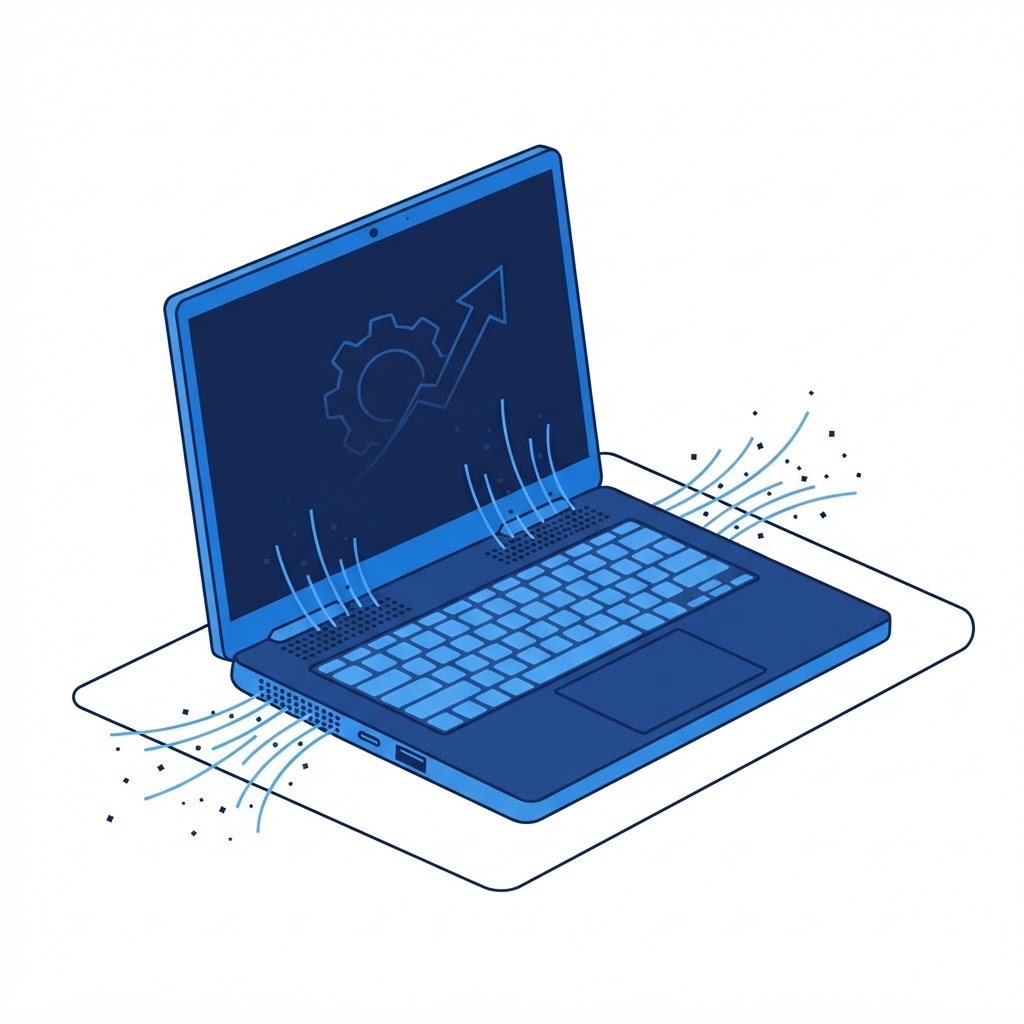
Laptops and desktop towers collect dust over time, blocking air vents and cooling fans. When your CPU or graphics card overheats, the processor automatically slows its clock speed (thermal throttling) to prevent physical hardware damage.
- The Fix: Use a can of compressed air to gently clear dust from cooling vents, fan exhausts, and intake grilles.
Performance Quick Comparison: DIY vs. Professional Remote Tuning
| Optimization Action | DIY Attempt | Technico Remote Optimization | | :--- | :--- | :--- | | Startup App Trimming | Manual disabling | Comprehensive service & registry audit | | Junk & Cache Cleaning | Basic temp folder delete | Deep system cache, logs, & shadow file purge | | Malware & Adware Removal | Basic free scanner | Enterprise-grade multi-engine malware remediation | | Driver & OS Repair | Standard Windows Update | Manual driver conflicts & kernel fix | | Turnaround Time | Hours of trial and error | 60–90 minutes complete system tune-up |
Related Guides
- Windows-specific? Follow how to fix a slow Windows PC: 8 checks that work.
- On a Mac? See how to speed up a slow Mac.
- Suspicious an infection? Our professional virus removal service guide covers the warning signs to watch for.
- Slow internet too? Read why your Wi-Fi is slow and how to fix it or see how remote computer repair online can tune your system for you.
Restore Your Computer's Speed with Technico Remote Support
If you have tried basic troubleshooting steps and your PC or Mac is still running painfully slow, don't give up on your computer just yet.
Technico provides fast, safe, and professional remote computer optimization across the United States. Our certified IT technicians connect to your computer online, diagnose hardware health, clean out system junk, eliminate background bloatware, and tune your settings for maximum performance—all while you watch from home.
Ready to get your fast computer back? Fill out Technico's quick Free Quote & Diagnostic Checklist now. Tell us what problems you are experiencing, and our technicians will provide an instant quote and optimize your PC today!
Still Running Slow?
Our technicians fix computers, Wi-Fi, printers and smart home devices remotely — anywhere in the US, same-day sessions available.