Bluetooth Not Working? How to Fix Common Pairing Problems
Headphones, keyboards, and mice that refuse to pair usually come down to one of six causes. Here's how to fix each of them.
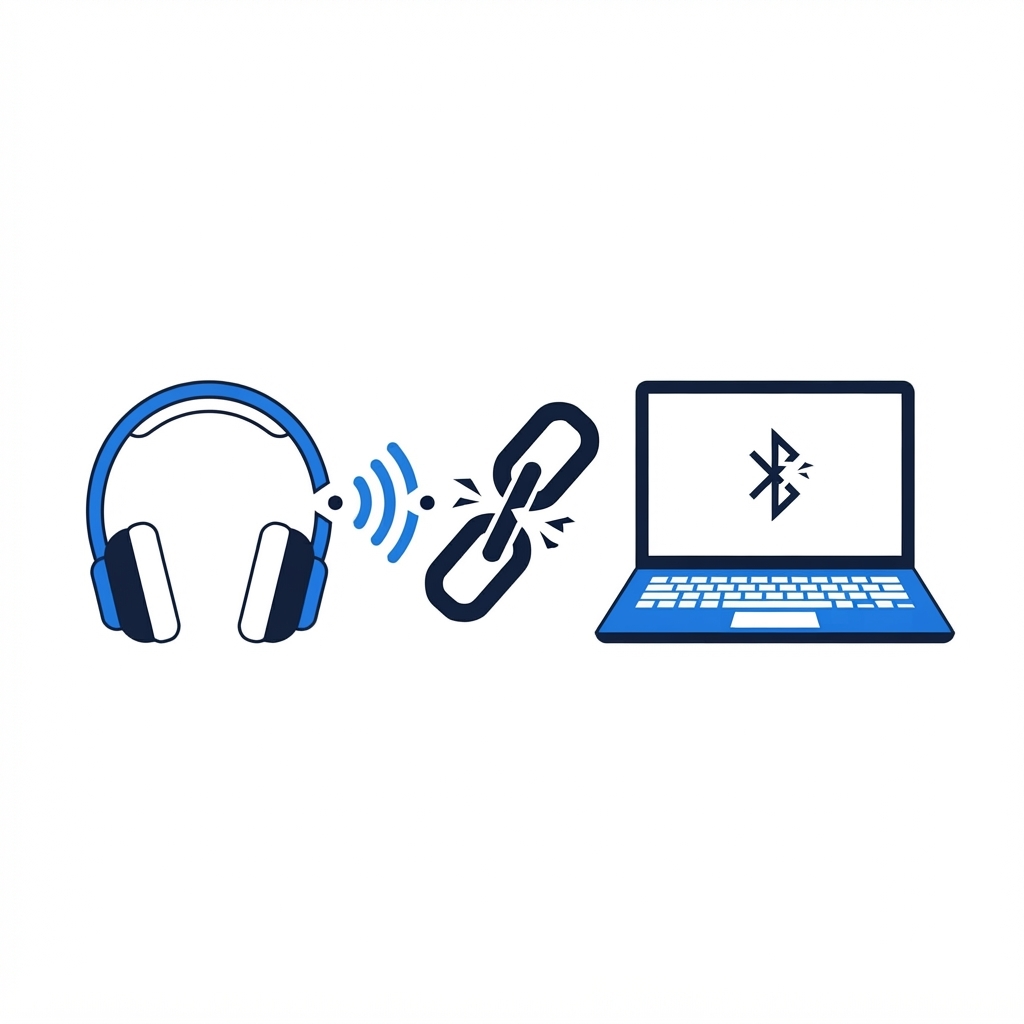
Bluetooth pairing fails in ways that feel random: the device shows up, then vanishes; it pairs but won't connect; or it's simply invisible. Behind almost every failure is one of a handful of causes.
The Six Usual Causes
1. The device is connected to something else. Bluetooth headphones auto-connect to the last thing they paired with. If they're in your ear connected to your phone, they won't appear on your laptop. Put the device in pairing mode (usually a long press on the power or pairing button until a light flashes) to break the old link.
2. Too many paired devices. Many devices keep a short memory — five connections, and the sixth silently fails. "Forget" old pairings in your Bluetooth settings to free slots.
3. The computer's Bluetooth radio is off or stuck. On Windows, check Settings > Bluetooth & devices, and also make sure Airplane mode is off. A quick toggle of Bluetooth off and on resets the radio. On Mac, check Control Center.
4. Outdated drivers (Windows). Device Manager > Bluetooth > right-click your adapter > Update driver. If problems started after a Windows update, reinstalling the Bluetooth driver from your PC maker's site often fixes it.
5. Interference or distance. Bluetooth is short-range — about 10 meters in open air, much less through walls, and it shares frequencies with Wi-Fi and USB 3.0 ports. Move the device closer, and keep USB receivers and hubs away from the Bluetooth antenna area.
6. Low battery. A battery too weak to transmit still powers an LED. Charge the device fully before concluding anything is broken.
The Reliable Pairing Sequence
-
Forget/delete the device from every computer it's paired with.
-
Restart both the computer and the device.
-
Put the device firmly into pairing mode — a solid light usually means "connected," a blinking light means "discoverable."
-
On the computer, click Add device > Bluetooth and select it promptly; pairing windows are short.
-
If it pairs but won't connect afterward, remove it once more and pair again — a corrupted pairing record is often the issue.
When It's the Computer, Not the Device
Test the device with a phone. If it pairs happily with your phone but never your computer, the computer's Bluetooth adapter or driver stack is the problem — and there's an easy workaround: a small USB Bluetooth dongle bypasses the built-in radio entirely.
If Bluetooth issues come bundled with other glitches (Wi-Fi drops, audio stutters), a remote technician can check the driver stack and radio settings for you in one session.
Need a Hand With Your Computer?
Our technicians fix computers, Wi-Fi, printers and smart home devices remotely — anywhere in the US, same-day sessions available.